

Account Dashboard
Each sub-account has its own dashboard page where you manage everything related to that account. Open it by clicking Details next to an account on the Sub-accounts page.
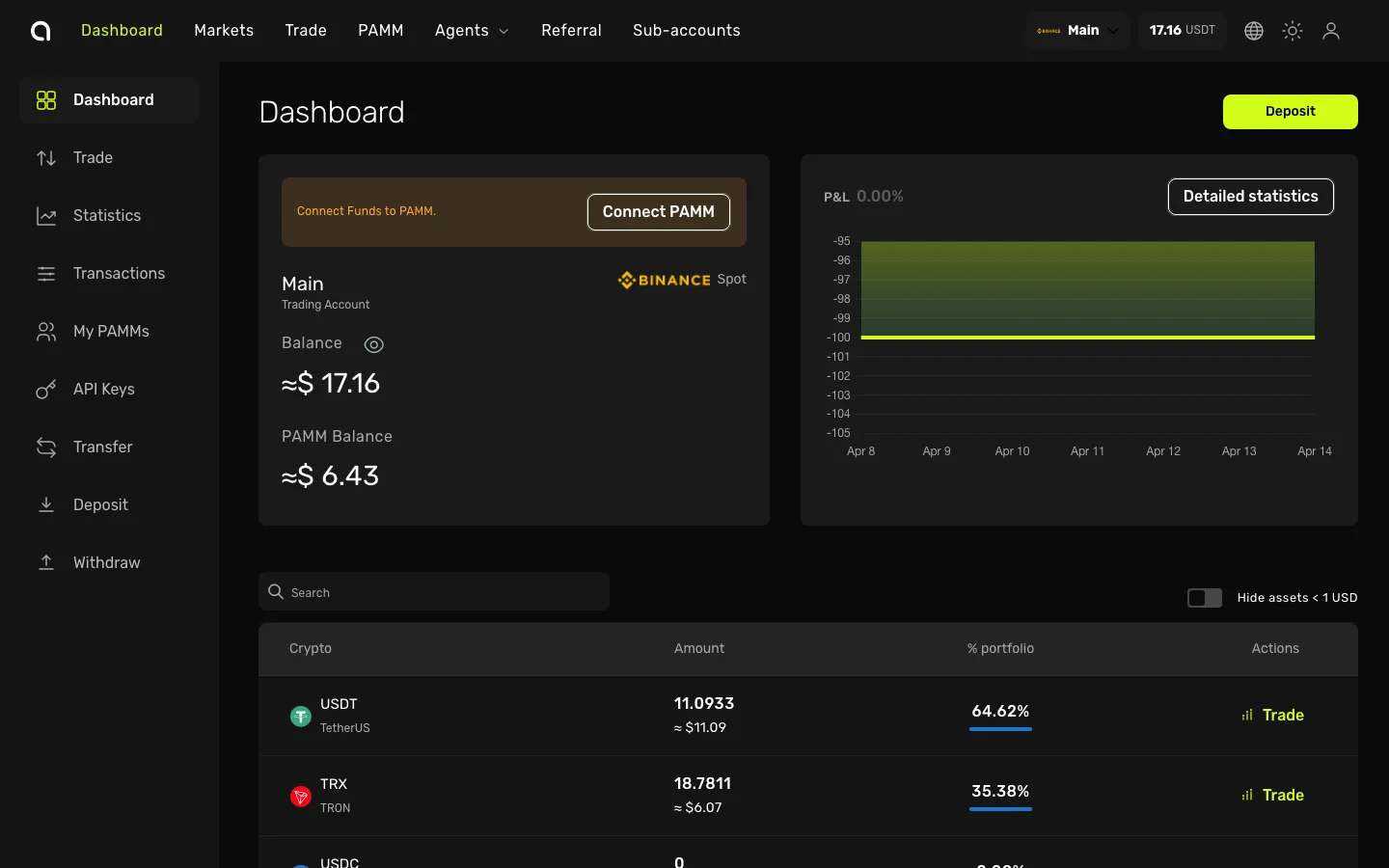
What You See
Balance & Overview
At the top of the dashboard:
- Account name and exchange (e.g., "Main — Binance Spot")
- Balance — Total account value in USDT
- PAMM Balance — Funds managed through PAMM (if applicable)
- P&L chart — Performance over the last 7 days
- Connect Funds to PAMM / Connect PAMM — Quick buttons for PAMM connections
- Detailed statistics — Link to the full performance analytics page
- Deposit button — Quick access to fund this account
Assets Table
Below the overview, the assets table shows all crypto held in this account:
| Column | Description |
|---|---|
| Crypto | Asset name and icon (e.g., USDT, BTC, ETH) |
| Amount | Quantity held and approximate USD value |
| % portfolio | Percentage of the total account balance |
| Actions | Trade button to open the trading terminal for this asset |
You can search for specific assets using the search field, and toggle Hide assets < 1 USD to hide dust balances.
Sidebar Navigation
The left sidebar provides quick access to all account features:
| Menu Item | Description |
|---|---|
| Dashboard | This page — account overview and assets |
| Trade | Open the trading terminal for this account |
| Transactions | View deposit, withdrawal, and transfer history |
| My PAMMs | View connected PAMM positions |
| API Keys | Manage API keys for this account |
| Transfer | Transfer funds to another account |
| Deposit | Add funds to this account |
| Withdraw | Withdraw funds from this account |
Switching Accounts
To switch to a different account, use the account selector in the top navigation bar (shows the current account name and balance). Click it to see a dropdown of all your accounts and select another one.
You can also go back to the Sub-accounts page to see all accounts at once.