

Two-Factor Authentication (2FA)
Two-Factor Authentication adds an extra layer of security to your Amabit account. When enabled, you need both your password and a 6-digit code from Google Authenticator to perform sensitive actions.
Why Enable 2FA?
- Required for withdrawals — You cannot withdraw funds without 2FA enabled
- Protects sensitive actions — API key creation, webhook management, and account settings changes all require a 2FA code
- Prevents unauthorized access — Even if someone obtains your password, they cannot access your account without the authenticator code
How to Enable 2FA
Step 1: Open Security Settings
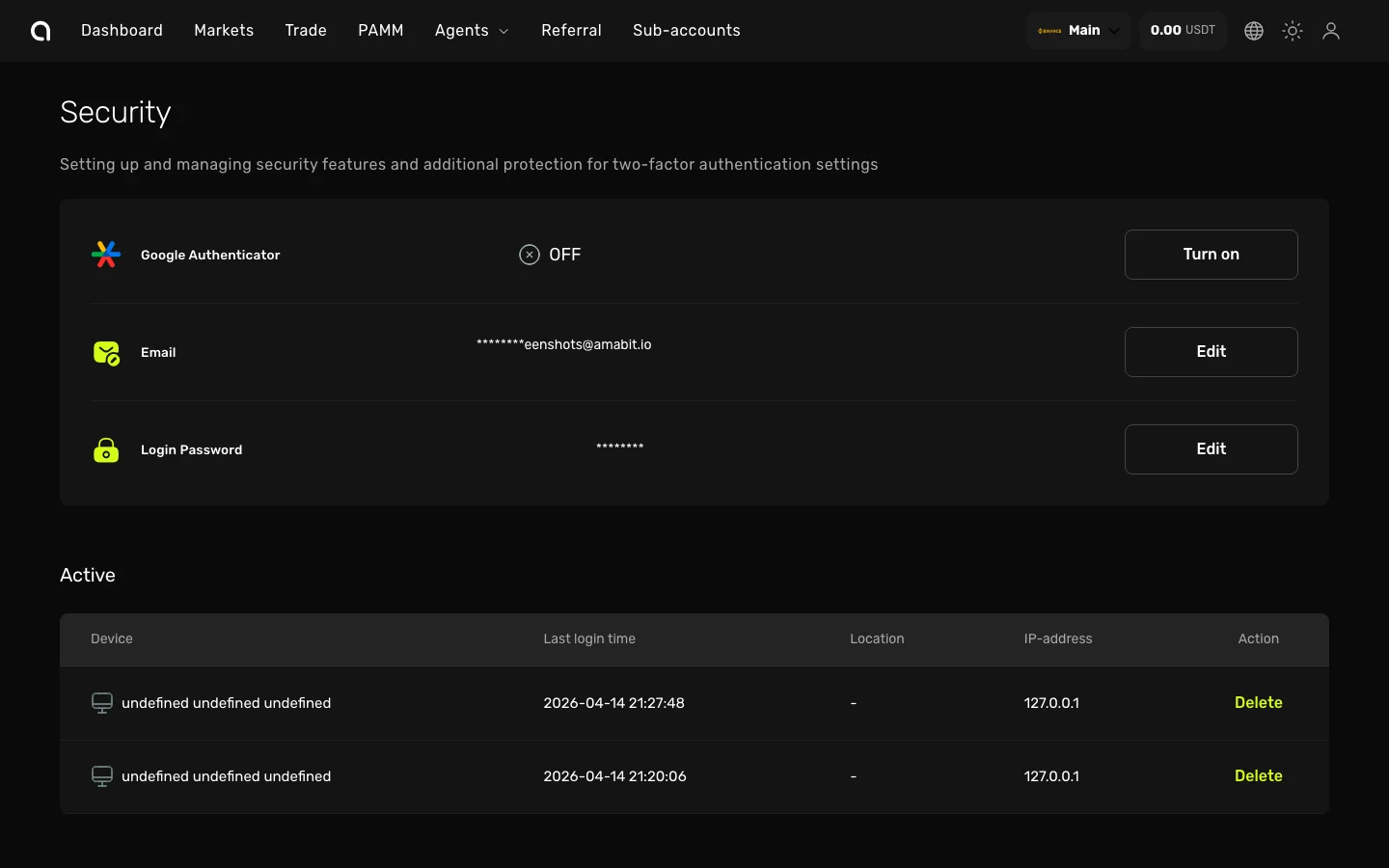
- Log in to your account at amabit.io/auth/login
- Click on your profile icon in the top-right corner and go to Security — or navigate directly to the Security settings page
- In the Google Authenticator row, you will see OFF and a Turn on button — click it
Step 2: Install Google Authenticator
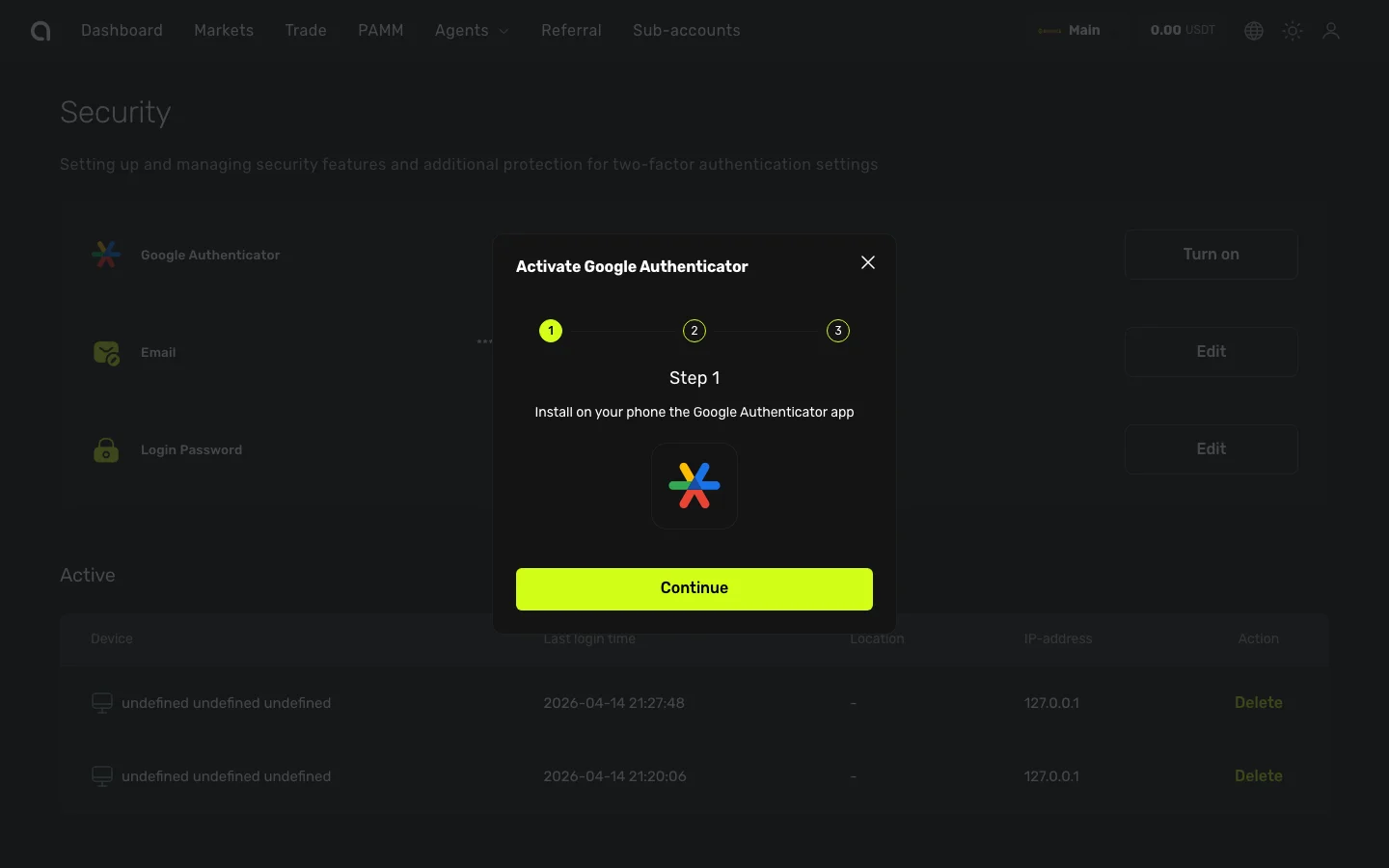
A dialog will appear with a 3-step wizard. On the first step:
- Install Google Authenticator on your phone if you don't have it yet:
- Click Continue
Step 3: Scan the QR Code
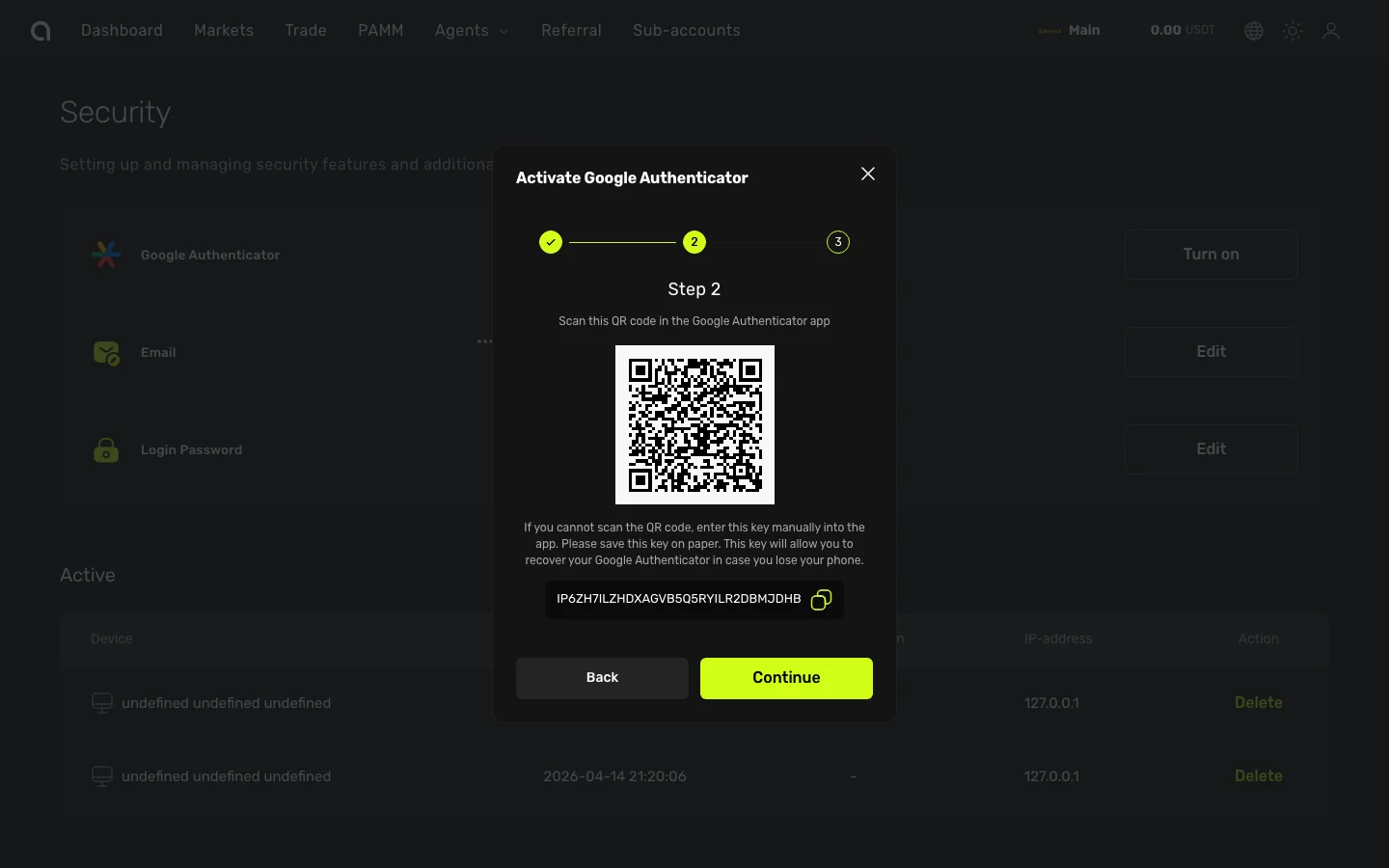
- Open Google Authenticator on your phone and tap + → Scan a QR code
- Point your phone camera at the QR code shown on screen
- Google Authenticator will add Amabit and start generating 6-digit codes
Important
Below the QR code you will see a backup key (a long text string). Copy and save it in a secure place. If you ever lose access to your phone or the authenticator app, this key is the only way to restore 2FA access to your account.
- Click Continue
Step 4: Enter the Verification Code
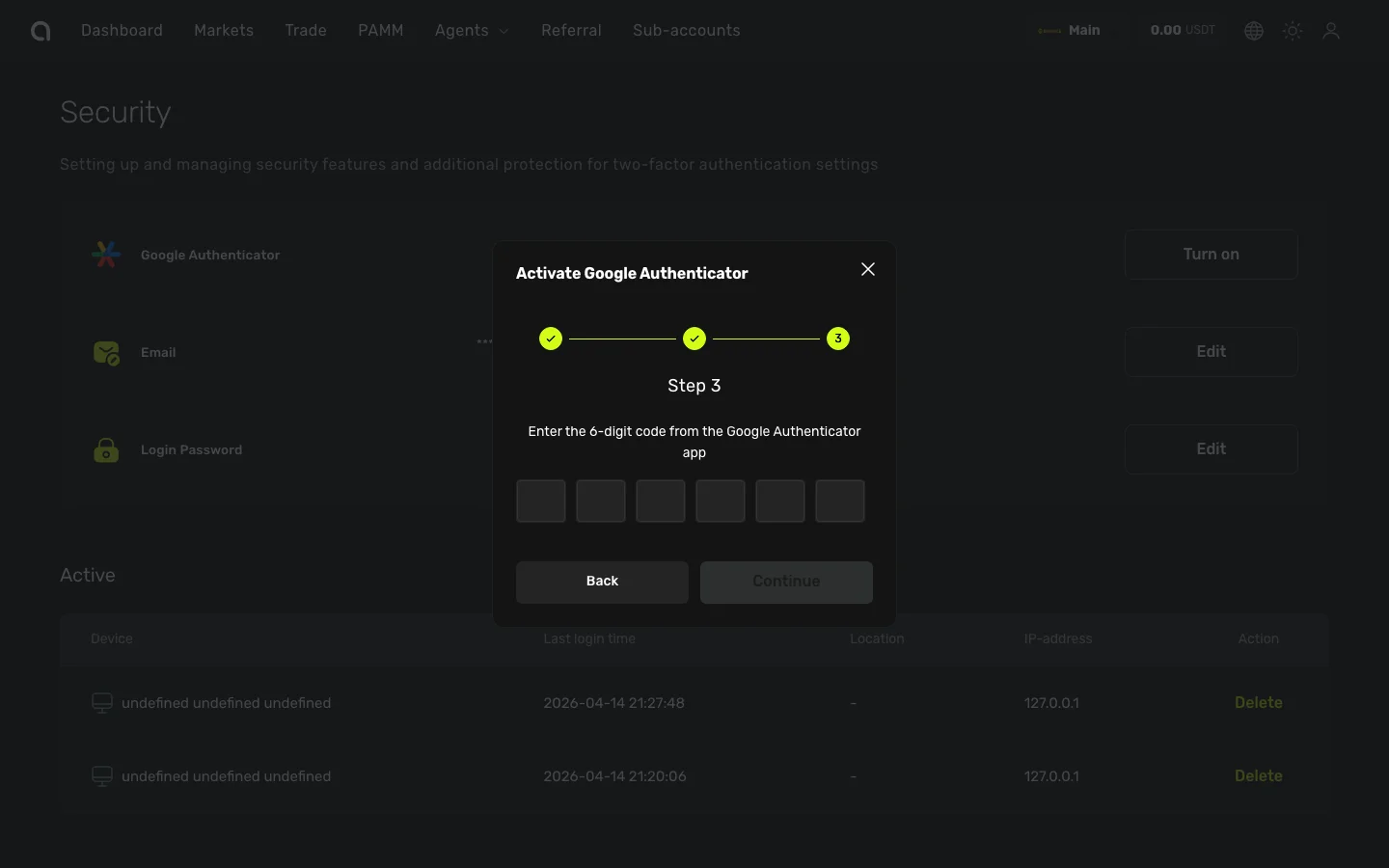
- Look at the 6-digit code currently displayed in Google Authenticator on your phone
- Enter the code into the six input fields on screen
- Click Continue — 2FA is now active on your account
When Is a 2FA Code Required?
Once enabled, Amabit will ask for a 6-digit code from Google Authenticator when you:
- Log in from a new or unrecognized device
- Withdraw funds from your account
- Create, edit, or delete API keys
- Create, edit, or delete webhooks (signal agents)
- Change security settings
How to Disable 2FA
- Go to Security settings
- In the Google Authenticator row, click Turn off
- Enter the current 6-digit code from Google Authenticator to confirm
- 2FA is removed from your account
DANGER
Disabling 2FA significantly reduces your account security. We strongly recommend keeping it enabled at all times.