

Device Confirmation
When you log in to Amabit from a new device or browser for the first time, the platform asks you to confirm the device before granting access. This protects your account even if someone else has your login credentials.
How It Works
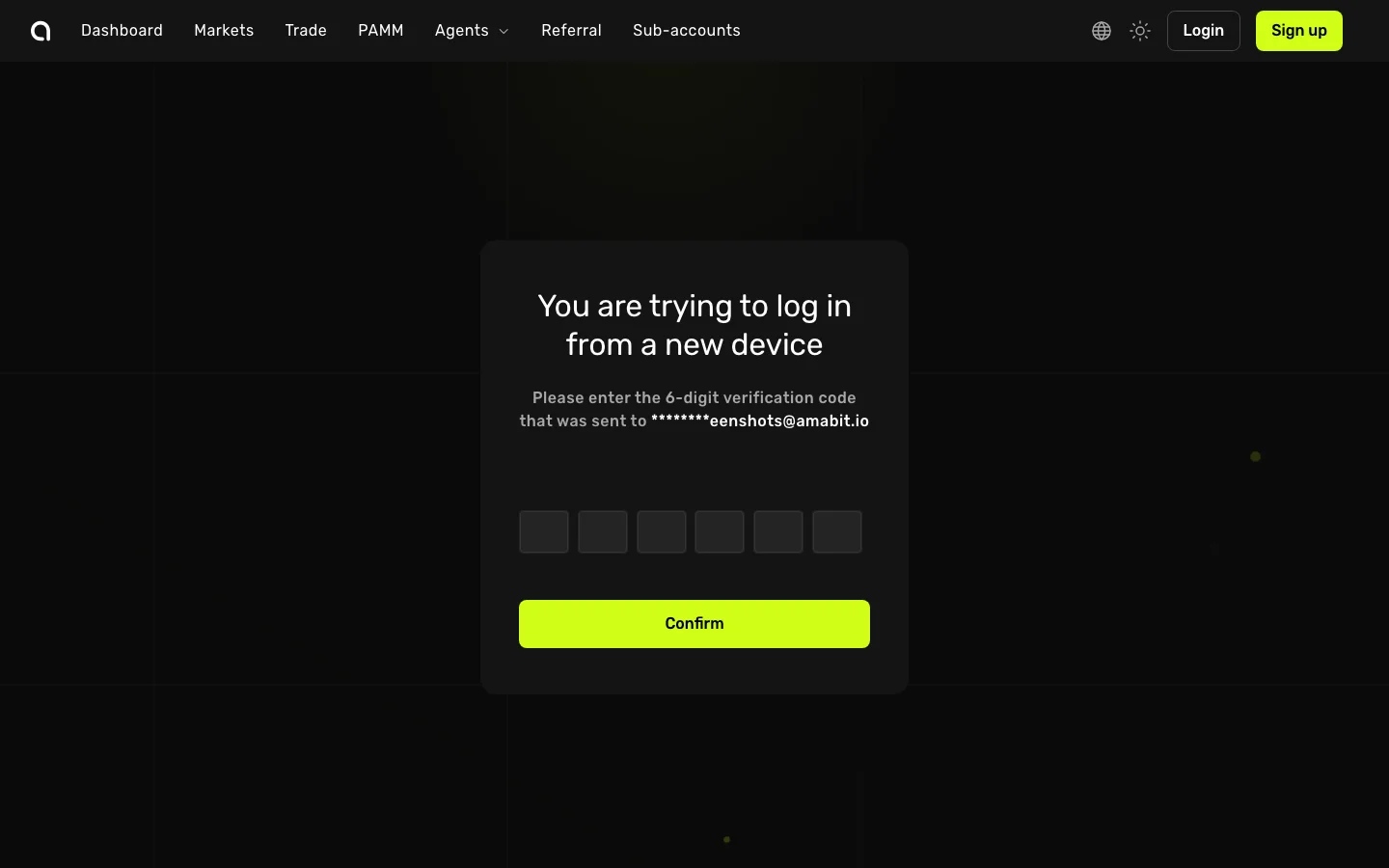
- Go to amabit.io/auth/login and enter your email and password as usual
- Amabit detects that you are logging in from an unrecognized device (a new browser, computer, or phone)
- A device confirmation screen appears asking you to enter a 6-digit verification code
- Amabit sends this code to your registered email address
- Open your email, find the code, and enter it into the six input fields on the confirmation screen
- Click Confirm — you are now logged in on the new device
TIP
After confirming a device once, you won't be asked to confirm it again on future logins from the same browser — unless you clear your browser data or cookies.
Why Is This Required?
Device confirmation is an additional security layer that ensures only you can access your account, even if your password is compromised. Each new device must be explicitly approved through your email.
Managing Your Devices and Sessions
You can view all confirmed devices and active sessions on the Security settings page:
- Active Sessions — See every device and browser currently logged in to your account, including device type, browser, IP address, and last active time
- Revoke Session — Click Delete next to any session to immediately log out that device
- Login History — Review when and from where your account was accessed, including both successful and failed login attempts