
Spot Trading
Spot trading on Amabit lets you buy and sell actual cryptocurrency assets at current or specified prices, using full Binance liquidity.
Order Types
Market Order
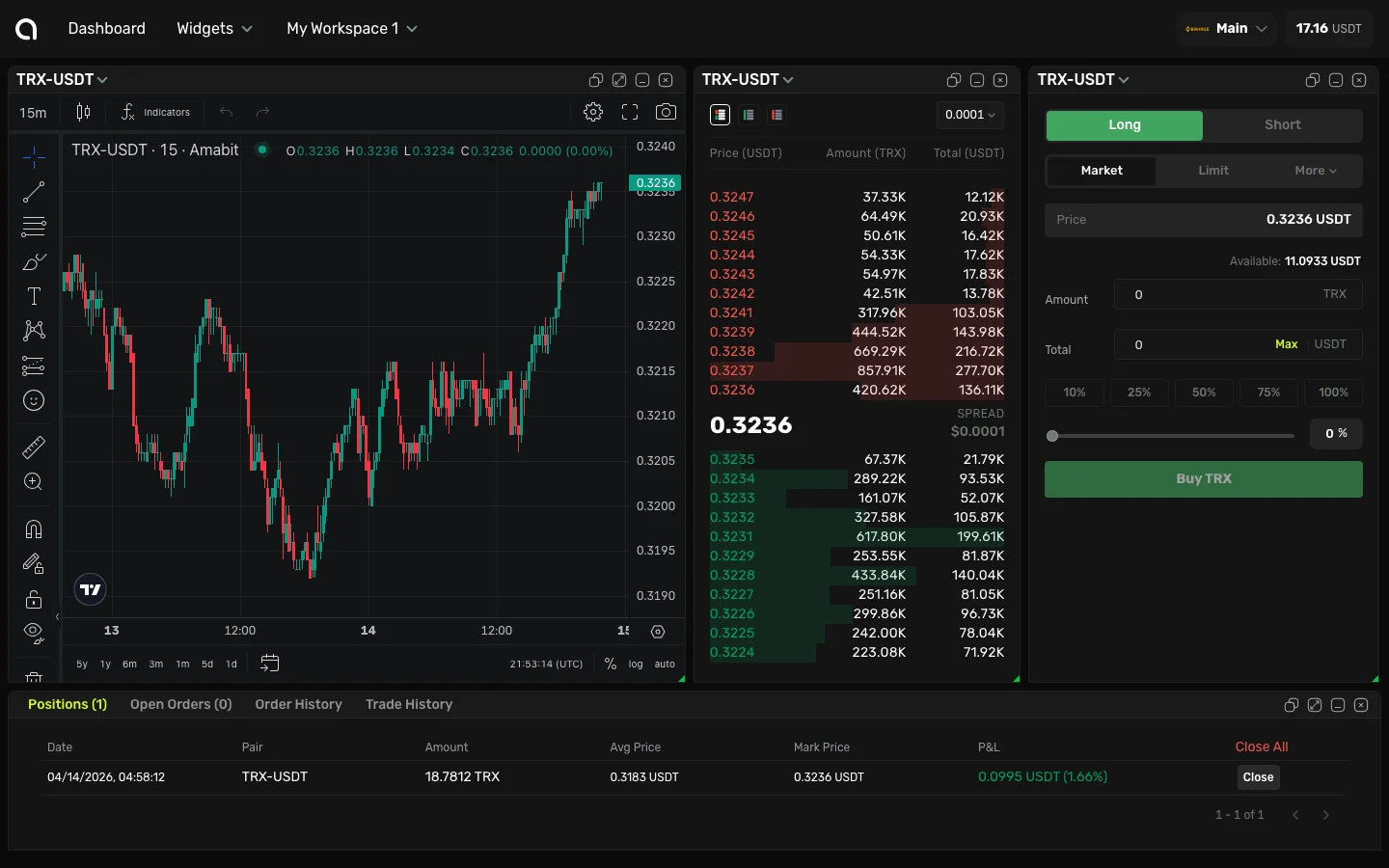
A market order executes immediately at the best available price. Use it when you want to enter or exit a position right away.
- Select Market in the order form
- Enter the amount (in base currency or quote currency)
- Click Buy or Sell
TIP
Market orders may experience slippage — the actual execution price might differ slightly from the displayed price, especially for large orders or low-liquidity pairs.
Limit Order
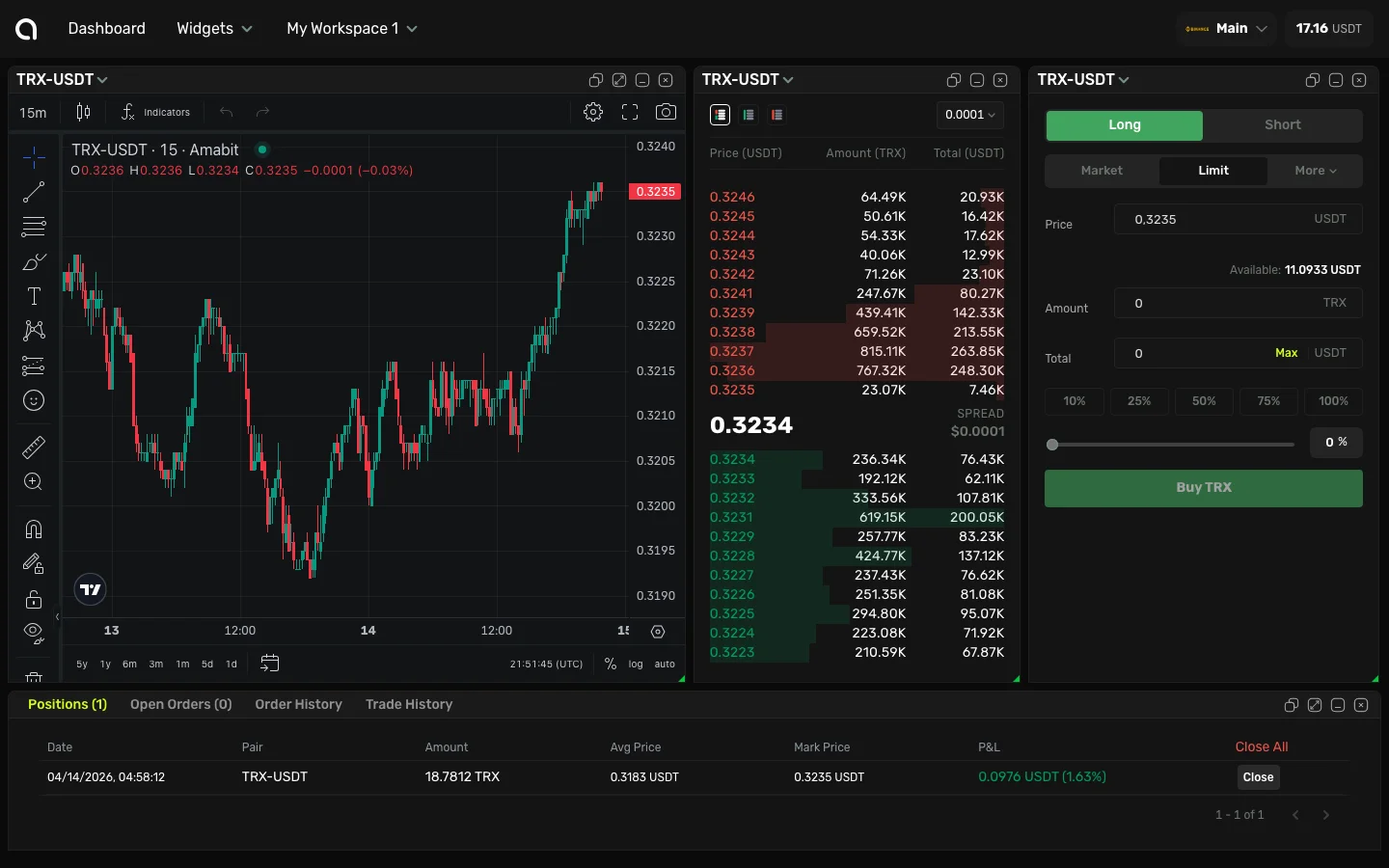
A limit order specifies a price at which you want to buy or sell. It only executes when the market reaches your specified price.
- Select Limit in the order form
- Enter the price at which you want to trade
- Enter the amount
- Click Buy or Sell
Your order appears in the Open Orders tab until it is filled or cancelled.
Stop-Market Order
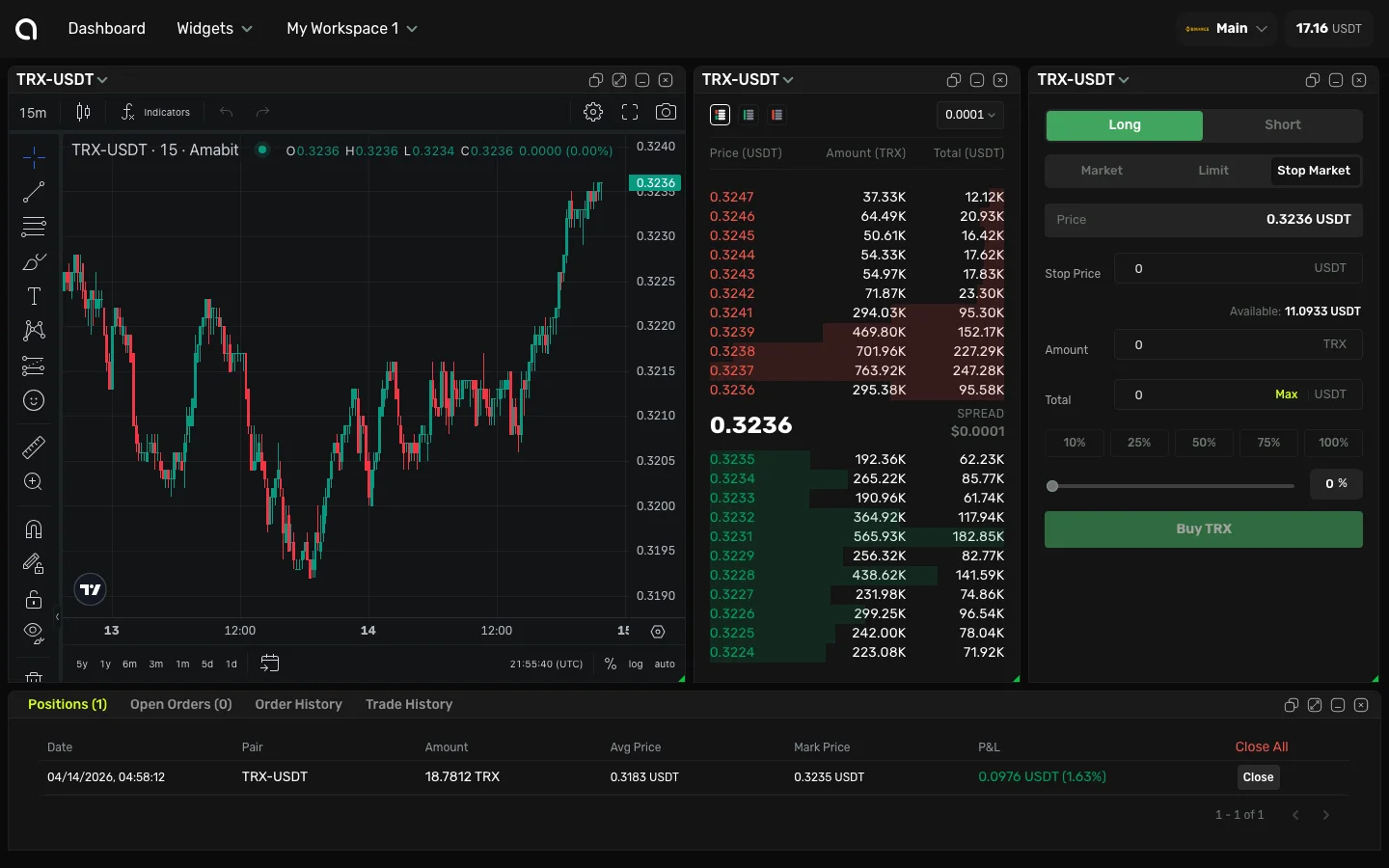
A stop-market order becomes a market order when the price reaches your specified trigger price. Useful for breakout entries or as a stop-loss.
- Click More in the order type selector and choose Stop Market
- Set the trigger price (stop price)
- Enter the amount
- Click Buy or Sell
Stop-Limit Order
Similar to a stop-market, but when triggered, it places a limit order instead of a market order. This gives you more control over the execution price.
- Select Stop-Limit in the order form
- Set the trigger price (stop price)
- Set the limit price (the price for the limit order)
- Enter the amount
- Click Buy or Sell
Trailing Stop Order
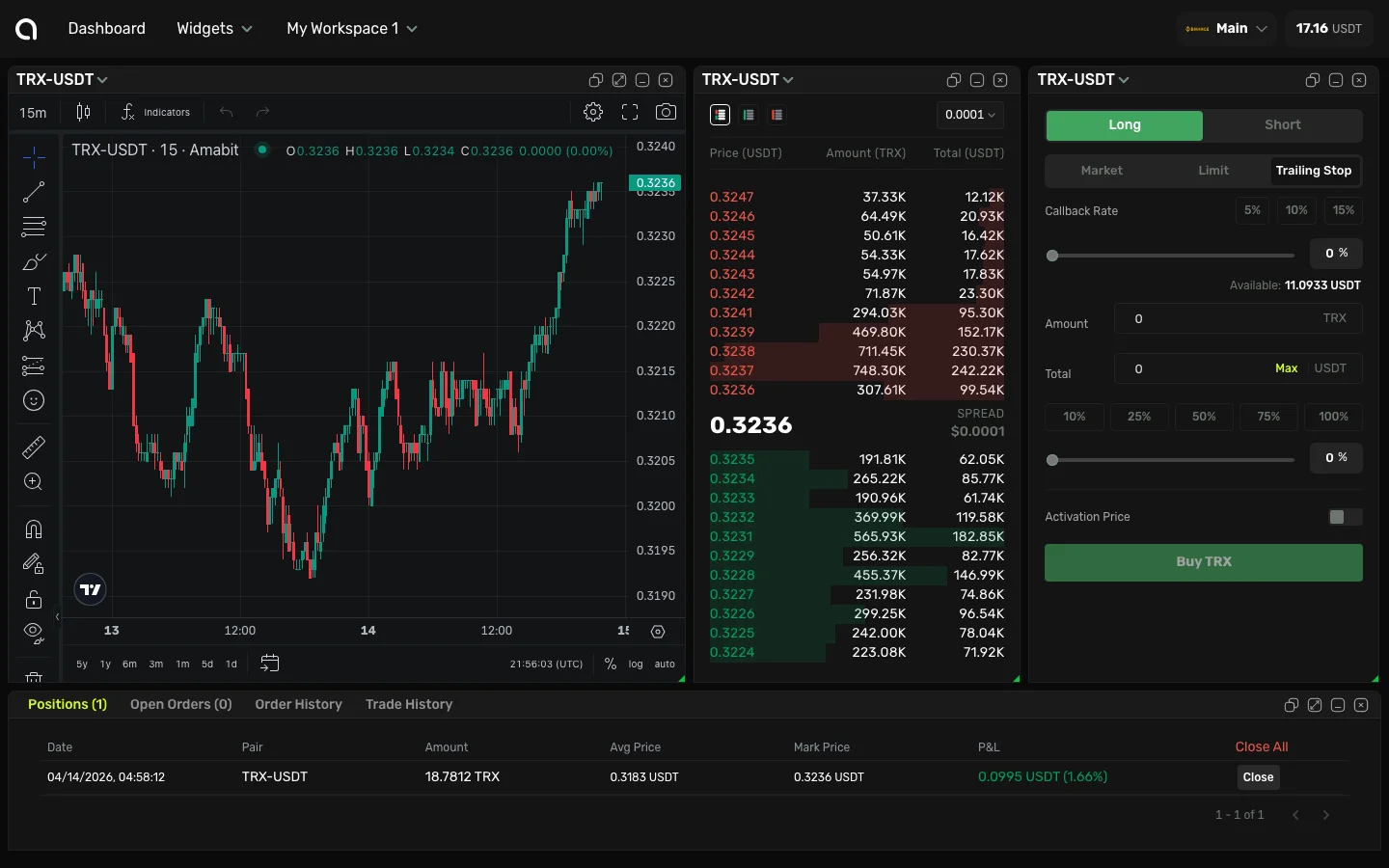
A trailing stop follows the price at a specified distance and triggers when the market reverses. Click More and select Trailing Stop.
- Set the Variance percentage using the slider or quick buttons (5%, 10%, 15%)
- Optionally enable Activation Price — the trailing stop only activates after this price is reached
- Enter the amount
- Click Buy or Sell
Adding Take-Profit & Stop-Loss
You can attach TP/SL to any order. See the detailed Take-Profit & Stop-Loss guide →.
Order Form Options
- Amount presets — Quick buttons to set 25%, 50%, 75%, or 100% of your available balance
- Total calculation — Automatically calculates the total cost based on price and amount
Managing Your Orders
After placing an order:
- Open Orders tab shows all pending orders
- Click Cancel to remove a pending order
- Order History shows completed and cancelled orders
- Trade History shows all executed fills